PowerPoint for the web is the official free version offered by Microsoft, accessible from any browser with a simple Microsoft account. It shares the rendering engine of the desktop application, but its technical limitations should be understood before building a production workflow on it.
Technical limitations of free online PowerPoint compared to the desktop version
The web version of PowerPoint does not replicate the full animation engine of the installed application. 3D transitions (Advanced Morph, complex custom paths) are either degraded in rendering or impossible to create directly in the browser. Presenter mode works, but some embedded media may not play smoothly depending on the codec and browser used.
On the storage side, files are saved in OneDrive with a free quota of 5 GB shared with all Microsoft data in the account (Outlook, photos, other documents). For heavy use with image and video-rich presentations, this limit is reached quickly.
We recommend testing the final rendering of a presentation created online before any distribution in a meeting. Exporting to PDF remains the most reliable way to freeze the layout if the recipient does not use PowerPoint. Users who wish to explore other access methods can check the detailed options to access free PowerPoint online on Scooporama before choosing their solution.

Co-editing and free sharing: what PowerPoint web does better than desktop
Real-time co-editing is the true technical advantage of the free version. Multiple users can simultaneously edit the same presentation, with continuous auto-saving. Each cursor is identified by color, and editing conflicts are managed at the paragraph level.
The sharing system offers three distinct levels of rights:
- View only, where the recipient can view the slides without being able to modify or download them (configurable option).
- Edit, which allows full co-editing with auto-saving in the same OneDrive file.
- Download, enabled or disabled independently of the editing right, allowing control over the distribution of the source file.
This level of granularity in permissions is identical to that of a paid Microsoft 365 subscription. For occasional collaborative use (preparing a pitch, student project, association report), the free version covers the entire need.
Education License: actual eligibility conditions for free PowerPoint
Microsoft offers Office 365 A1 to recognized educational institutions, including online PowerPoint. Access is not automatically activated by declaring student status. The institution must be registered with Microsoft and activate the license for its users via a verified email domain.
In practice, this means that eligibility depends entirely on the institution’s administration. A student whose university has not subscribed to the Education program cannot benefit from it, even with a valid student card.
What the A1 license includes and excludes
The A1 license provides access to web applications (Word, Excel, PowerPoint, OneNote) and often offers a OneDrive space that is more generous than the 5 GB of the standard free account. However, it does not include installable desktop applications. To obtain desktop software, the A3 or A5 license is required, which incurs a cost for the institution.
We observe that many articles present the Education license as full access to the Office suite. The distinction between web applications and installed applications remains the main dividing line between free and paid, even in the educational context.
Free alternatives compatible with the PowerPoint format
Working for free on .pptx files is not limited to the Microsoft ecosystem. Two options deserve technical attention.
Google Slides natively imports and exports .pptx files. Layout compatibility is decent for text-heavy presentations, but complex animations and custom fonts experience rendering shifts. The pivot format remains PDF to ensure visual fidelity across platforms.
LibreOffice Impress, installed locally, offers more comprehensive support for the .pptx format than online solutions, particularly for OLE objects and basic macros. The software works offline, making it suitable for environments without reliable network access.
Criteria for choosing between these free solutions
- Need for real-time collaboration: PowerPoint web or Google Slides, both manage co-editing.
- Presentations with advanced animations: only the desktop application (paid) guarantees complete rendering.
- Working offline on .pptx files: LibreOffice Impress is the only viable free option.
- Integrated cloud storage without configuration: PowerPoint web via OneDrive or Google Slides via Google Drive.
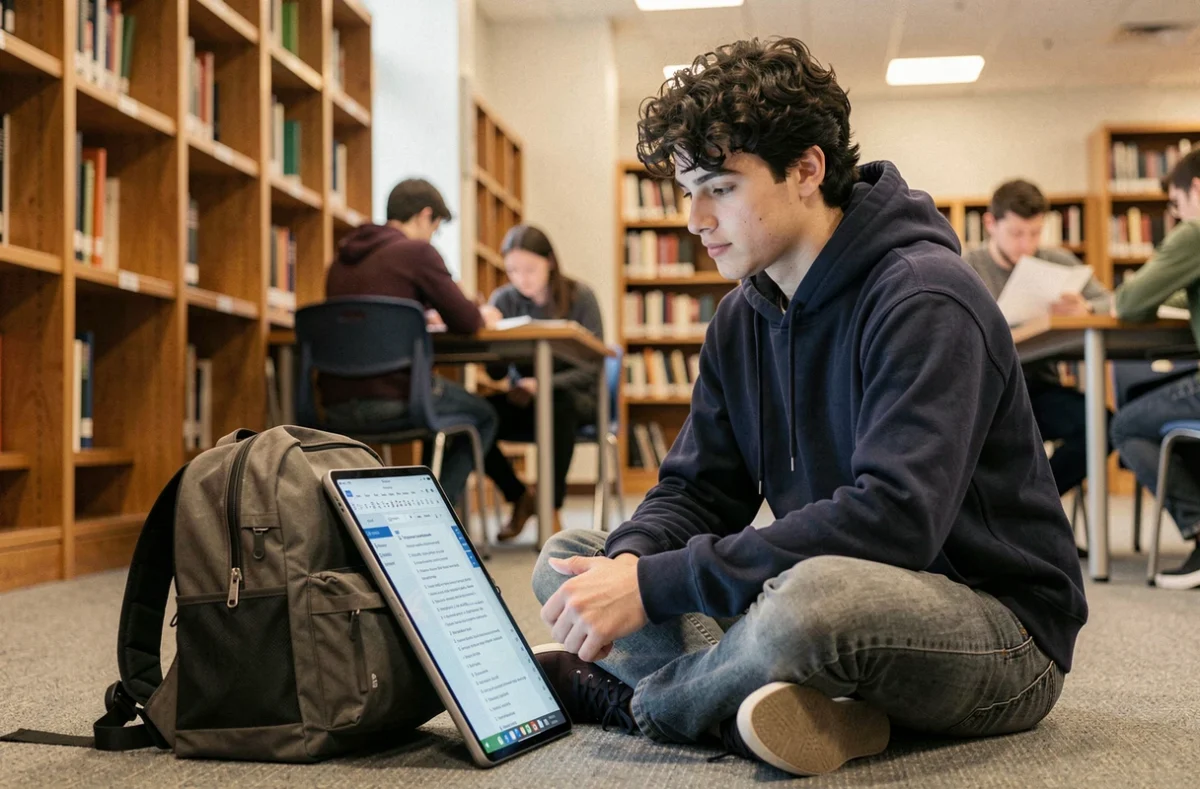
The choice between these tools depends less on price (all free) than on the context of use. A mixed workflow, where creation is done on PowerPoint web and the final export is in PDF, remains the most robust combination to avoid compatibility issues between software and versions.